
The best free patio design app for most homeowners right now is Planner 5D or RoomSketcher, depending on how hands-on you want to get. Both let you draw a patio layout, drop in furniture and decor, and get a 3D preview without paying a cent. If you're looking for inspiration as you sketch, a quick scan of top patio designs can help you decide on layout, zones, and finishes. If you need cleaner exports or CAD-style files to hand off to a contractor, OpenPlan3D is the dark horse pick since it's fully open-source and exports to PNG, SVG, DXF, and PDF at no cost. OpenPlan3D is a free open-source floor plan editor that supports 2D drawing and 3D visualization, and it lists exports including PNG, SVG, DXF, and PDF free open-source floor plan editor with 2D drawing and 3D visualization. The catch with all of them: "free" rarely means fully featured. Here's exactly what you get, what you don't, and how to pick the right tool for your project.
Best Free Patio Design App and Free Software Guide

What 'free' actually means in patio design tools
Every app on this list has a free tier, but they're not all equal. Some are genuinely useful for free, while others use the free plan mainly to get you in the door before nudging you toward a paid upgrade. Before you invest time learning any tool, it helps to understand the four ways "free" gets limited.
- Watermarks on exports: Floorplanner's free (SD Lite) tier puts its watermark on every exported image. RoomSketcher does the same. If you're printing a plan to show a contractor, this can look unprofessional.
- Resolution caps: Floorplanner's free export tops out at 960x540 pixels (SD quality). That's fine for your own reference but too blurry for detailed contractor review or material shopping.
- Feature lockouts: RoomSketcher's free tier doesn't include Live 3D walkthroughs. Planner 5D's free plan limits the number of items you can place and locks certain materials behind a paywall. Live Home 3D's free version restricts you to one active project at a time.
- Export format restrictions: SketchUp Free (web-based) only exports SKP and PNG. That means no DWG or DXF files, which many contractors and landscape architects work with. OpenPlan3D is the exception here, exporting DXF and PDF for free.
- Project/design limits: Floorplanner's free tier caps you at 3 floors and 3 designs per project. For a single patio design, this is usually fine, but it's worth knowing.
The bottom line: for personal planning, sketching layouts, and experimenting with ideas, most free tiers are genuinely useful. Where they fall short is when you need contractor-ready files, high-resolution renders, or advanced material swapping. Keep that in mind as you pick your tool.
Top free patio design apps and software compared
Here's a side-by-side look at the most practical free options available right now. If you want to narrow it down fast, compare the best patio home communities to see which style and layout fits your lifestyle most practical free options available right now. I've focused on tools that are genuinely usable for patio planning, not just interior room design tools that happen to work outdoors.
| Tool | Best For | Free Tier Includes | Key Free Limitations | Export Formats (Free) |
|---|---|---|---|---|
| Planner 5D | Beginners, visual layout planning | 2D/3D layout, drag-and-drop decor, basic material options | Limited furniture catalog, some materials paywalled | Images (PNG/JPG) |
| RoomSketcher | Easy floor plans with 3D snapshots | Drawing tools, furnishing, 3D Snapshots | No Live 3D, watermarked outputs, limited high-quality renders | Watermarked images |
| Floorplanner | Quick 2D/3D floor plans | 2D and 3D plan view, basic object library | 960x540px max resolution, watermark on exports, 3 designs/project | PNG/JPG (SD, 960x540px, watermarked) |
| SketchUp Free (Web) | Advanced DIYers, custom 3D modeling | Full 3D modeling in browser, large 3D Warehouse object library | No DWG/DXF export, SKP and PNG only, steeper learning curve | SKP, PNG |
| OpenPlan3D | Homeowners needing contractor-ready files | 2D drawing, 3D visualization, LiDAR scan import | Less polished UI, smaller community/support | PNG, SVG, DXF, PDF |
| Live Home 3D (Free) | Detailed floor plans with visual walkthrough | 2D/3D layout, multiple export image formats | One project at a time, watermark on image/video exports | PDF, JPEG, TIFF, PNG, BMP (watermarked) |
My top picks at a glance
- Best for beginners: Planner 5D. The drag-and-drop interface is intuitive and the 3D view updates in real time as you place objects. You can plan a basic patio layout, pick furniture, and get a visual sense of the space in under an hour.
- Best for getting a usable floor plan fast: RoomSketcher. The drawing tools are clean and the 3D Snapshots are genuinely useful for visualizing how a space will feel, even if the Live 3D feature is locked behind a paywall.
- Best for contractor handoffs (free): OpenPlan3D. It's not the prettiest interface, but the ability to export DXF and PDF files for free is a real advantage when you need to show a professional contractor your layout.
- Best for advanced DIYers: SketchUp Free. If you're comfortable with 3D modeling or want to build a highly detailed custom patio design, SketchUp's 3D Warehouse gives you access to thousands of outdoor furniture and structure models.
- Best for visual detail and multi-format export: Live Home 3D. The free version is limited to one project, but the image export options (PDF, JPEG, PNG, TIFF, BMP) are broader than most free tools offer.
How to choose the right tool for your needs
The right app depends less on which one is "best" in the abstract and more on what you actually need to do. Run through this quick decision path before you commit.
If you're a beginner just sketching ideas
Go with Planner 5D or RoomSketcher. Both work in a browser and on mobile, neither requires any design experience, and you can have a rough layout ready in 20 to 30 minutes. You're not trying to produce a construction document here, you're just figuring out if a 12x16 patio feels big enough or whether you want a dining area plus a lounge zone. These tools handle that well.
If you want to experiment with materials and flooring
Planner 5D and RoomSketcher both let you swap flooring textures and surface materials in the free tier, though the selection is limited. SketchUp Free gives you more control here because you can apply custom textures or pull in materials from the 3D Warehouse, but it takes more time to learn. SketchUp Free and SketchUp for Web are available as web-based 3D modeling tools, and the SketchUp Free plan does not require a subscription SketchUp Free gives you more control here. If you're planning to compare pavers versus stamped concrete versus wood decking visually before committing, Planner 5D is the faster route. For deeper material planning, pairing the app with physical samples and the advice in a good patio layout guide is still the most reliable approach.
If you're handing the design to a contractor

Use OpenPlan3D. The free DXF export is the key feature here. Most residential contractors and landscape architects can open a DXF file directly in their own software. PDF export is also useful for a simple dimensioned overview they can print and reference on-site. If you're already comfortable with SketchUp, you can export an SKP file that many contractors can view (though not all have SketchUp installed).
If you're an advanced DIYer building it yourself
SketchUp Free is worth the learning curve. You can model the exact dimensions of your yard, build out structures like pergolas or retaining walls, and get a detailed sense of how the finished project will look. The 3D Warehouse has an enormous library of outdoor furniture, planters, fire pits, and structural components. Just accept that free-tier exports are limited to SKP and PNG, so for your own reference you'll be screenshotting rather than generating clean documents.
Step-by-step: from measurements to a finished patio layout
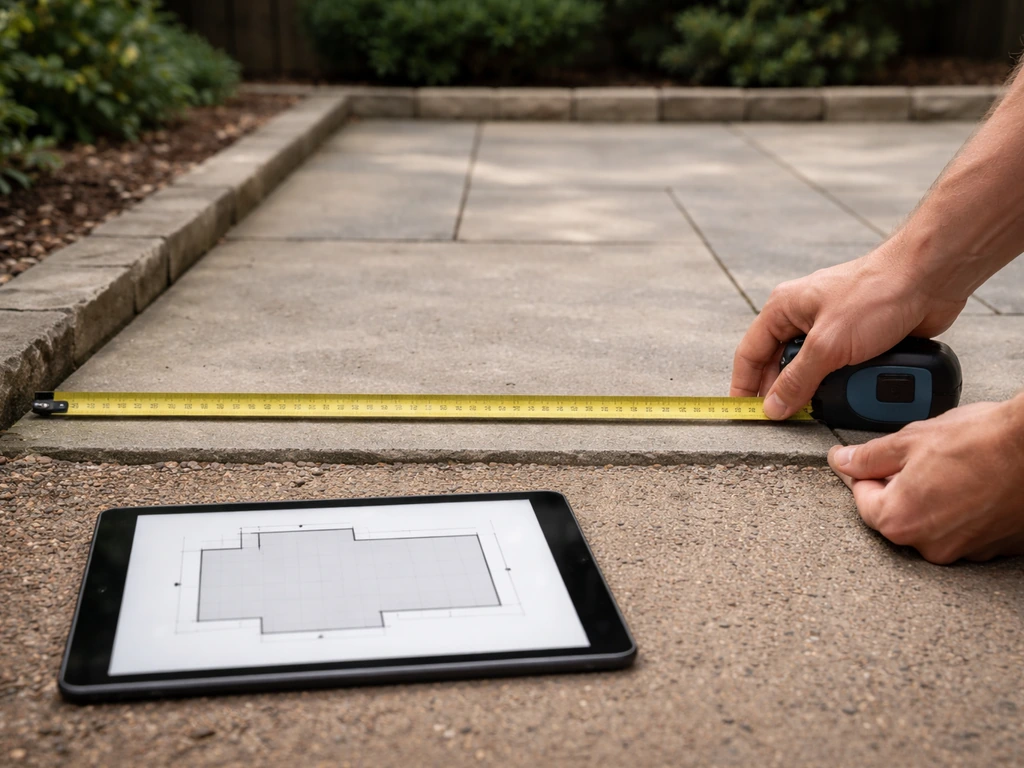
Here's how to actually get from a blank backyard to a usable digital design you can act on. I'll use Planner 5D as the example since it's the most beginner-friendly, but the workflow applies to most of these tools.
- Measure your space before opening any app. Walk the yard with a tape measure and record the overall dimensions of the area where the patio will go, plus note any fixed features: doors, windows, gas lines, hose bibs, HVAC units, trees, slopes. A rough sketch on paper with measurements takes 10 minutes and saves hours of app frustration later.
- Take photos from multiple angles. Stand in each corner and take a photo toward the center. Also grab one from an upstairs window or elevated position if you have it. These photos help you visualize scale when you're placing objects in the app and are useful to share with contractors.
- Open the app and set your project dimensions. In Planner 5D (and most others), you start by drawing the room/space outline. Input the actual measurements you took. If your patio area is irregular (L-shaped, has a curve), use the drawing tools to trace the approximate shape rather than forcing it into a rectangle.
- Add your house wall or structure as a boundary. Mark which edge of your patio layout connects to the house. This is important for orienting the design correctly and for thinking about things like door clearance and traffic flow.
- Drop in your key pieces first: dining table, seating group, or grill station. Place the largest functional zones before adding smaller decor. Think in zones: dining, lounging, cooking, and if relevant, a buffer zone for planters or privacy screening.
- Swap flooring materials and see how the space reads in 3D. Toggle between the top-down 2D view for accuracy checking and the 3D view for a feel of the space. In Planner 5D, tap the 3D button to get a quick visual. In RoomSketcher, use the 3D Snapshot feature.
- Iterate the layout two or three times. Move things around. Try a different furniture arrangement. Shift the dining zone to the shaded side. This is the point of using a free tool: experimentation costs nothing.
- Export or screenshot your final layout. Save both a 2D top-down view with dimensions visible and a 3D view for visual reference. Even a low-resolution export is useful when you're walking a home improvement store or talking to a contractor.
Planning materials, flooring, and decor inside the app
Most free patio design apps include at least a basic library of flooring textures and outdoor furniture. Here's what you can realistically do and where the free tools run out of runway.
Flooring and surface materials
Planner 5D and RoomSketcher both offer flooring texture options including pavers, wood decking, tile, and stone patterns. They're not photorealistic at the free tier, but they're good enough to help you decide whether you want a warm wood-tone look versus a gray concrete paver look. SketchUp Free gives you the most control over materials if you're willing to apply custom textures manually. OpenPlan3D is more limited on decorative materials but stronger on accurate dimensioning.
One practical tip: don't rely entirely on app textures when choosing your actual patio flooring material. App representations of pavers versus stamped concrete versus composite decking can look more similar on screen than they do in real life. Use the app to confirm layout and proportion, then order physical samples of your top two or three material choices. If you're in a hot climate like Texas or the Southwest, this is especially important since material heat absorption and slip resistance under moisture matter a lot and no app will simulate that.
Furniture and decor placement
Planner 5D has a decent free library of outdoor furniture including dining sets, lounge chairs, umbrellas, fire pits, and planters. RoomSketcher's free library is similarly useful for basic furniture. SketchUp's 3D Warehouse is the largest by a wide margin, with manufacturer-accurate models of real furniture brands you can search by name. If you're buying a specific sectional sofa or dining set, there's a reasonable chance someone has uploaded a 3D model of it to the Warehouse.
When the app isn't enough
Free apps generally don't handle elevation changes well (steps, raised platforms, sloped grades), and none of them will help you plan drainage, electrical, or structural requirements. For a simple flat patio with furniture, a free tool is all you need. For something more complex, such as a multi-level deck, a built-in outdoor kitchen, or a patio with a pergola requiring permits, the design app is a starting point for conversations with a contractor, not a substitute for one. Exploring what makes a strong patio design overall can also help you use these tools more intentionally. If you want a great result, it helps to compare a few different best patio layout options before you commit to furniture placement and materials.
Exporting and sharing your design
Getting your design out of the app and into a form you can actually use is where free tiers create the most friction. Here's how to handle it.
For your own reference or shopping
A screenshot works fine. Every tool lets you view the 2D and 3D layout on screen. Take a screenshot of the top-down 2D view with your dimensions visible, and another of the 3D perspective. Save these to your phone or a shared folder. When you're at a home improvement store or scrolling furniture websites, pull up the screenshot to confirm dimensions and proportions before you buy.
For sharing with a contractor
If you want to share a file rather than a screenshot, your best options are: export a PDF or DXF from OpenPlan3D (free, no watermark), export a watermarked image from Floorplanner or RoomSketcher and explain to the contractor it's a concept sketch, or share a live Floorplanner link using the Spaceplanner public link feature, which lets someone view your design in a browser without needing an account. For most residential contractors, a clear dimensioned sketch or PDF is all they need to give you a quote. They'll do their own site measurement before breaking ground regardless.
For building a shopping list
None of the free apps automatically generate a materials list from your design, so you'll need to do this manually. Print or screenshot your dimensioned 2D layout, then calculate square footage for flooring (length x width, add 10 percent for waste), count your furniture pieces, and note any structural elements like posts or beams. Some AI-assisted patio design tools are starting to generate these lists automatically, which is worth exploring if you want to go further than the basic free apps covered here. If you're specifically looking for the best AI patio design free option, focus on how well the tool generates a usable layout and export that matches your needs AI-assisted patio design tools.
Limitations, common frustrations, and when to upgrade
Going in with realistic expectations will save you a lot of frustration. Here's what I've run into personally and what comes up most often.
Common limitations to expect
- Watermarks are genuinely annoying if you want to print or share designs. Floorplanner, RoomSketcher, and Live Home 3D all watermark free-tier exports. Budget for a one-time upgrade if you need clean files, or use OpenPlan3D to avoid this entirely.
- Mobile apps vs web apps: Planner 5D and RoomSketcher both have mobile apps (iOS/Android) and work on desktop browsers. SketchUp Free is web-based and works best on a desktop with a mouse. Live Home 3D has separate Mac/Windows and iOS apps. Make sure the tool you pick works on whatever device you'll actually use.
- Irregular or sloped lots: most free tools assume flat ground. If your yard has a slope, you'll need to mentally account for grade changes that the app won't render accurately.
- Object library gaps: the free furniture libraries are limited. You may not find the exact pieces you're considering, which means you'll be using approximations for size and shape.
- Learning curves: SketchUp has a steeper learning curve than the others. If you've never used 3D modeling software, budget an afternoon to get comfortable with the navigation controls before you start designing.
When the free tier stops being enough
Consider upgrading if: you need to share a clean, professional-looking design with a contractor or HOA, you're working on a large or complex project with multiple zones, you need high-resolution renders for a permit application, or you want to use the material-swapping and visualization features that are locked in the free tiers of Planner 5D and RoomSketcher. Most upgrades on these platforms are available as one-time project purchases rather than annual subscriptions, so you're not locked into recurring costs.
Troubleshooting common issues
- App is slow or crashing: SketchUp Free and Floorplanner are browser-based and memory-intensive. Close other browser tabs and try Chrome or Edge if you're on Firefox. Live Home 3D as a downloaded app typically runs faster than browser tools on the same hardware.
- Can't find outdoor-specific furniture or paving items: search the 3D Warehouse (SketchUp) for specific items by name. For other apps, look in 'outdoor,' 'garden,' or 'terrace' categories rather than 'patio,' which isn't always a category label.
- Dimensions look wrong in 3D: double-check that you set your project units (feet vs meters) correctly at the start. This is the most common source of scale issues.
- Export resolution is too low: if you're stuck on a 960x540 watermarked export from Floorplanner, try zooming into specific sections and screenshotting those at higher effective resolution, or switch to OpenPlan3D for a clean vector SVG export.
The free tools available in 2026 are genuinely capable for most homeowners planning a patio. Start with Planner 5D or RoomSketcher to get your ideas out of your head and into a visual layout, use OpenPlan3D if you need clean files to share, and consider SketchUp Free if you want to go deeper into custom 3D modeling. Pair whatever app you choose with real measurements, physical material samples, and at least one conversation with a local contractor before you start buying materials. The app is a communication tool as much as a design tool, and even a rough watermarked floor plan gives a contractor something concrete to quote against.
FAQ
Which of the best free patio design app options is easiest to learn if I only want a quick layout?
Start with Planner 5D or RoomSketcher. They are designed for fast layout decisions and typically let you get a usable 2D top-down plan and basic 3D view without setting up detailed measurements or advanced modeling tools first.
Can I use a free patio design app to size my paver or decking square footage accurately?
You can approximate coverage, but don’t treat app visuals as a takeoff. Use the app to confirm overall patio length and width, then calculate square footage manually and add waste (10 percent is a good baseline). If your patio has curves or step-offs, measure those areas separately.
Will free exports from these patio design apps work with contractors and landscape architects?
Often, yes, but it depends on file type. OpenPlan3D is the strongest option in this article for contractor-friendly exports like DXF and PDF. For other tools, you may get only watermarked images or limited formats, which most contractors can still use for quoting if you include clear dimensions.
What is the best way to communicate elevation changes like steps or a sloped backyard with a free app?
Most free patio design apps handle elevation poorly. For anything with slopes, raised platforms, or multi-level steps, use the app only for overall footprint and furniture zoning, then rely on site measurements and contractor input for grading, riser heights, and structural details.
Do free patio design apps help with drainage planning and where water will go?
Not reliably. None of the free tiers in this guide are meant to design drainage or electrical. Use the app to sketch where key elements are located, but have a contractor review grading and stormwater flow, especially if you’re near foundation walls or doors.
Can I model a pergola or built-in outdoor kitchen in these free tools?
You can model the concept, especially in SketchUp Free with more detailed 3D control, but permits and structural engineering will not be covered by free tiers. Treat it as a visualization for discussion, then get engineering or local code confirmation before finalizing materials and dimensions.
Which app is better for comparing materials like pavers versus stamped concrete if I’m shopping in-store?
Use the app to compare layout and general look, then verify with real samples. Screen textures can look more similar than they do in person, and in hot climates you also need to consider heat absorption and slip resistance, which apps cannot simulate.
If my patio is irregularly shaped, will these free tools still be worth using?
Yes for zoning and rough planning, but expect extra manual work. Irregular edges, insets, and curved boundaries may require careful dimension screenshots and possibly separate area calculations for accurate square footage.
Do the free versions generate a materials list automatically?
Usually no. The practical workflow is to print or screenshot a dimensioned 2D plan, then build your own list from that: calculate flooring area, count furniture pieces, and note key structural items like posts or beams.
What should I export or share so a contractor can quote faster?
Share a top-down 2D screenshot that clearly shows dimensions, plus a simple 3D view for context. If you need a file, use OpenPlan3D exports (DXF or PDF) when possible, because contractors can open those directly in their own tools.
Is SketchUp Free still a good choice if I don’t want to learn 3D modeling?
It can be, but only if you’re willing to spend time. SketchUp Free offers more control and access to the 3D Warehouse, yet free-tier exports are limited to SKP and PNG, so you may rely on screenshots for most documentation.
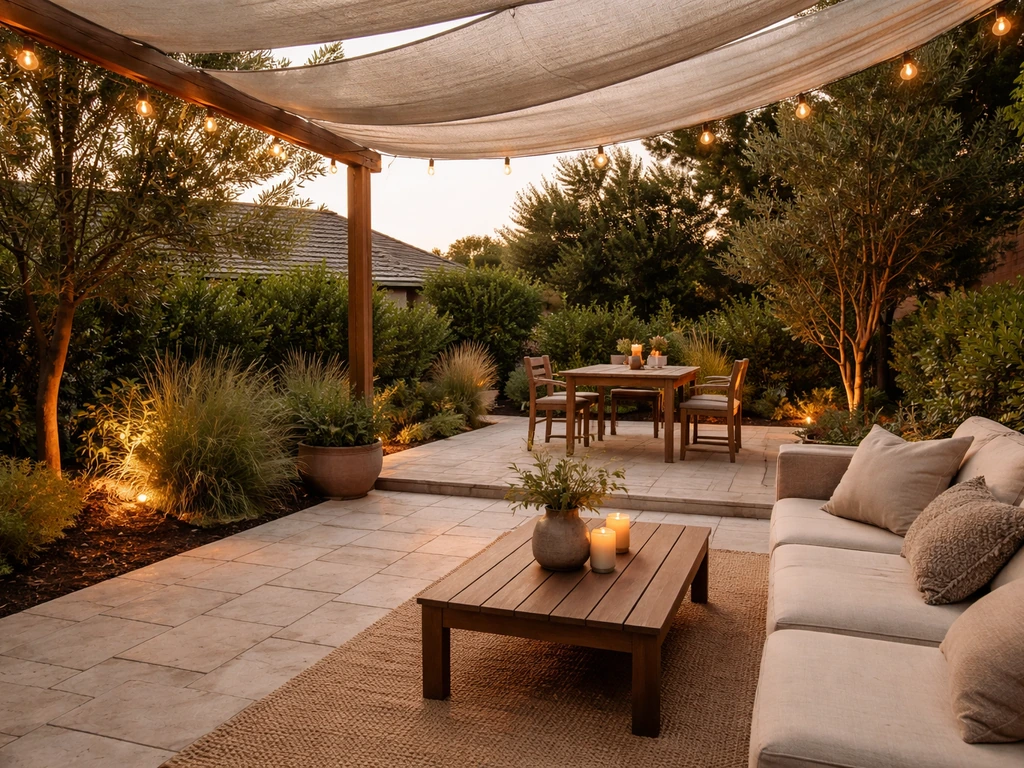
Best patio design guide with layouts, material picks, shade, privacy and lighting plus a DIY vs hire checklist.
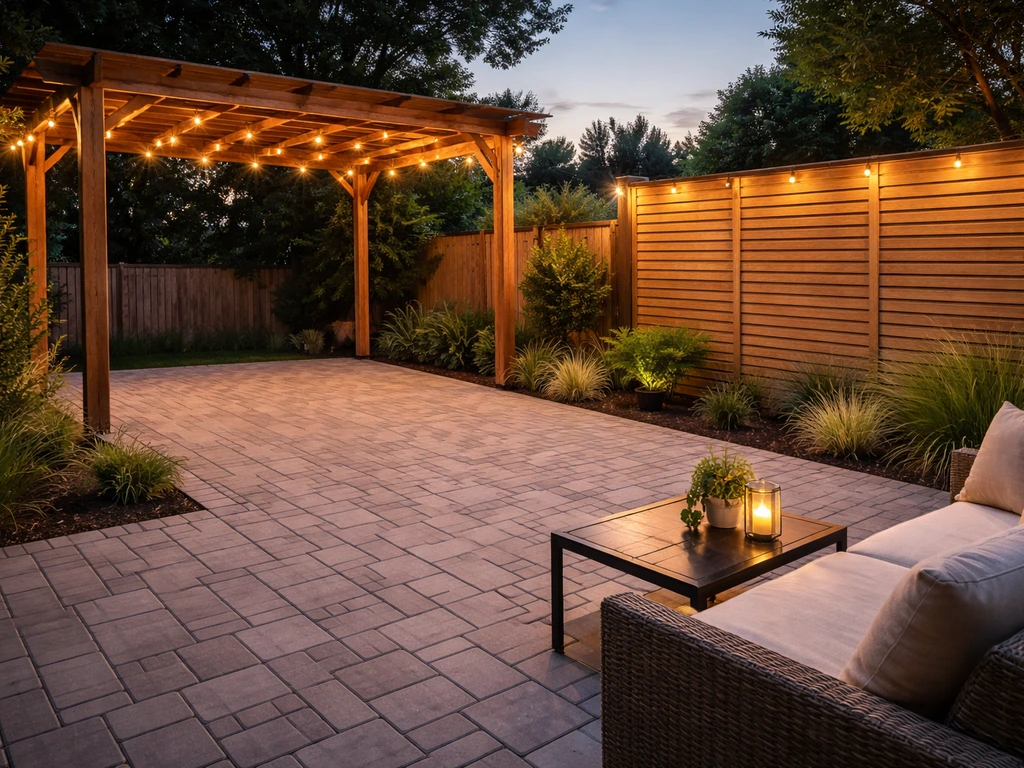
DIY outdoor patio ideas for planning, building, upgrading, and maintaining floors, shade, privacy, lighting, and decor.
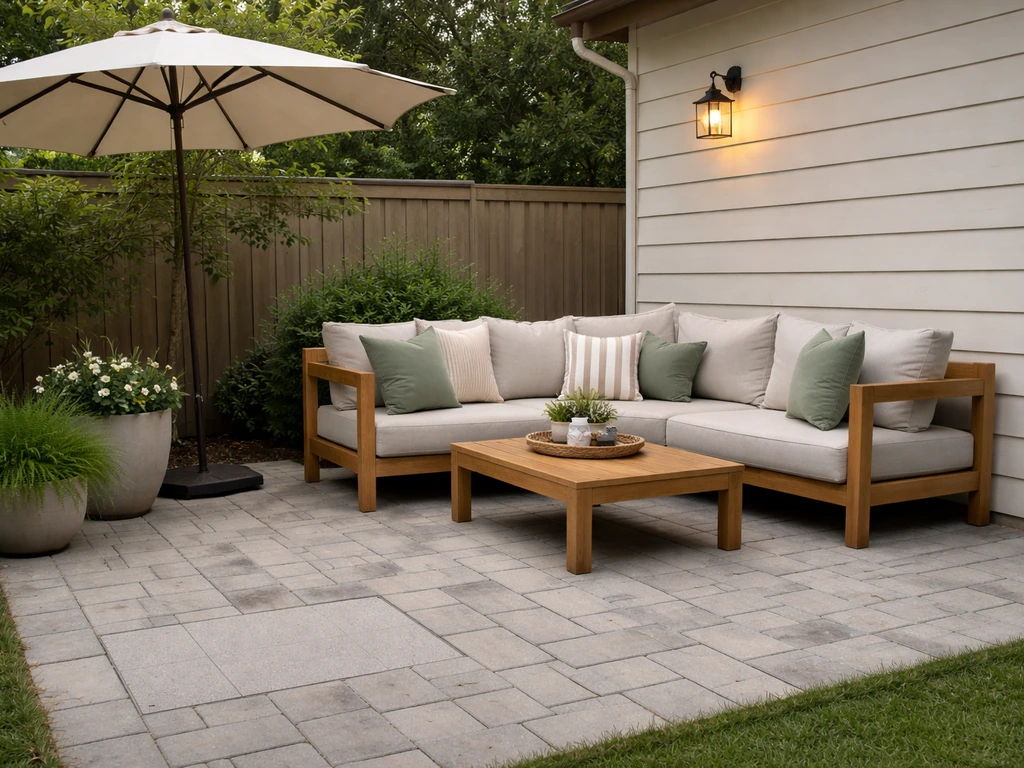
Quick fix patio ideas for fast comfort and style: cleanups, repairs, shade, flooring tweaks, and safe upgrades on any bu